

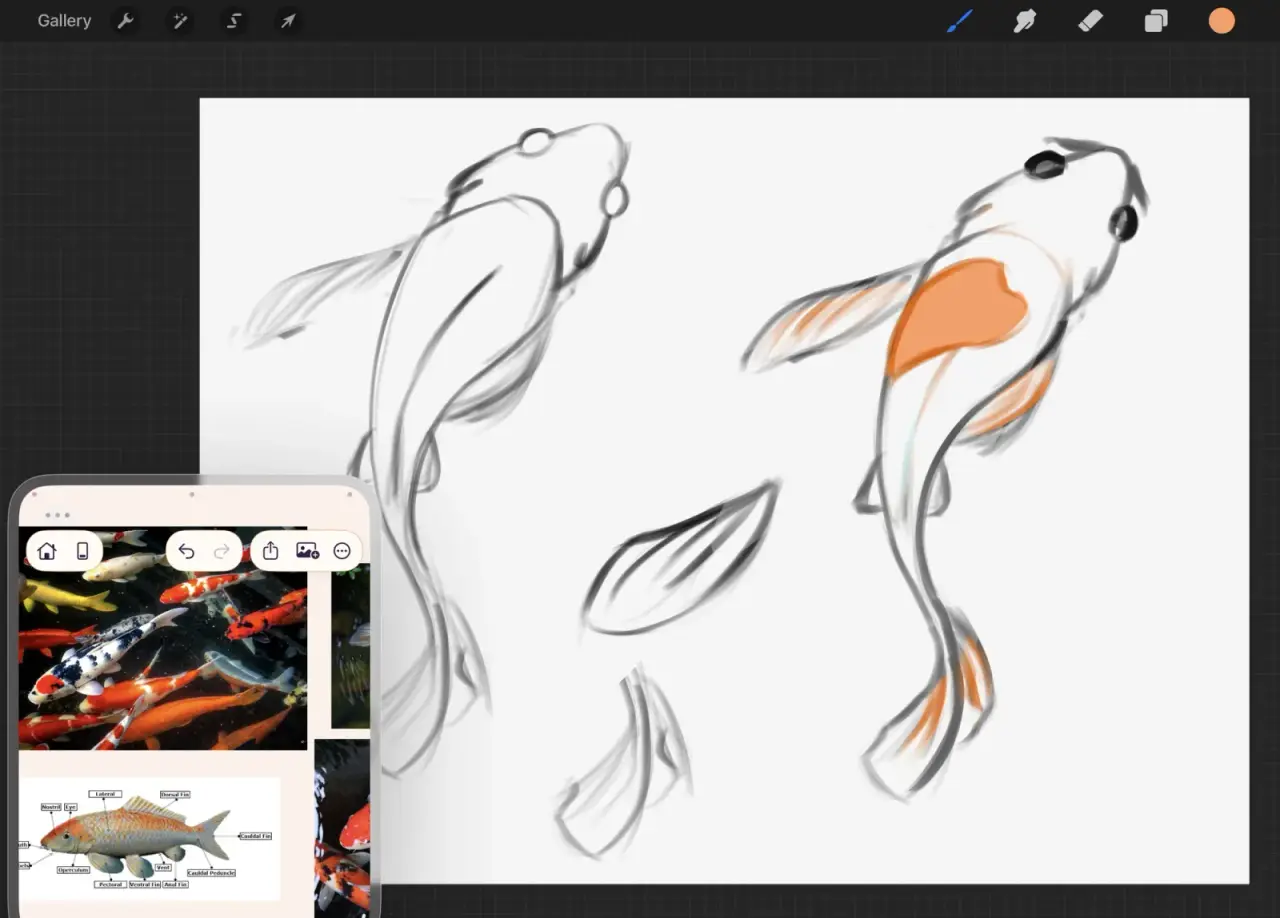
Put the board next to the canvas
- Create a board in ArtDeck. Add your reference images from Photos or Files, or drag them in from Safari.
- Arrange the images where you want them. A few pictures are enough to start; add notes or groups if they help you.
- Open Procreate next to ArtDeck using your iPad’s window controls. Zoom and pan the board as you draw.
The study tools are there when you want to examine a reference, and the board works without them.
On iPadOS 26, enable Windowed Apps in Settings, under Multitasking & Gestures. With Procreate open full screen, drag ArtDeck from the Dock to the left or right edge of the screen. Adjust the divider to give each app enough room. Apple’s current multitasking guide shows the controls.
Slide Over is available on iPadOS 26.2 and later. It keeps ArtDeck in a floating window you can move aside between checks. On iPadOS 18, use the multitasking menu for Split View or Slide Over. Stage Manager is another option on supported iPads.
Choose the window size that lets you read your references and still reach Procreate’s drawing tools.
What the Reference Companion already does
Procreate’s built-in Reference Companion opens from Actions, then Canvas, then the Reference toggle. Canvas mode shows a live overview of your artwork. Image mode imports one image from Photos, and Face mode supports FacePaint on compatible iPads. You can zoom and sample colors in the Canvas and Image views.
That window can stay inside Procreate while your ArtDeck board holds the references in its own window. For example, keep the live canvas overview in Procreate and a pose photograph and lighting reference in ArtDeck.
Copy images into Procreate
Select your images in ArtDeck and choose Copy from the radial menu or menu bar, or press Command-C. Wait for the copy confirmation. In Procreate, swipe down with three fingers and tap Paste, or use Actions > Add > Paste.
Multiple images are copied as a transparent PNG with a longest edge of 2,560 pixels. A single image keeps any crop or flip applied in ArtDeck. See the clipboard guide for other item types and resolution options.
Paste adds a new canvas layer, not an image in the Reference Companion. No need to save to Photos or Files first.
Where one image stops being enough
The Reference Companion’s Image mode displays one imported image at a time. You can combine several references into a single image and import that collage, or place references on a Procreate layer.
An ArtDeck board keeps your Procreate reference images separate, so you can move and resize each one as you work. Start with two photographs, then add another reference, a link, or a note whenever you need it. The same board can also hold video and GIF references.
If you draw in another iPad app
Your reference board can stay with the project when you change drawing apps. The iPad workflow for drawing and animation covers Adobe Fresco and Clip Studio Paint, plus Procreate Dreams and ToonSquid for animation.
ArtDeck uses iPadOS windows to sit alongside the drawing app. Image transfer and color pasting depend on what each app accepts; keeping references visible does not require either.
Paste a sampled color into Procreate
- Use Pick Color in ArtDeck to sample your reference. ArtDeck automatically copies the hex code.
- In Procreate, tap the active color at the top right, then choose Value.
- Touch and hold the Hexadecimal field and choose Paste.
To reuse a recent sample, see the color clipboard tip.
Copy a six-digit hex color from Procreate or another app and paste it onto the ArtDeck canvas. ArtDeck creates a labeled swatch, so the color stays with its reference.
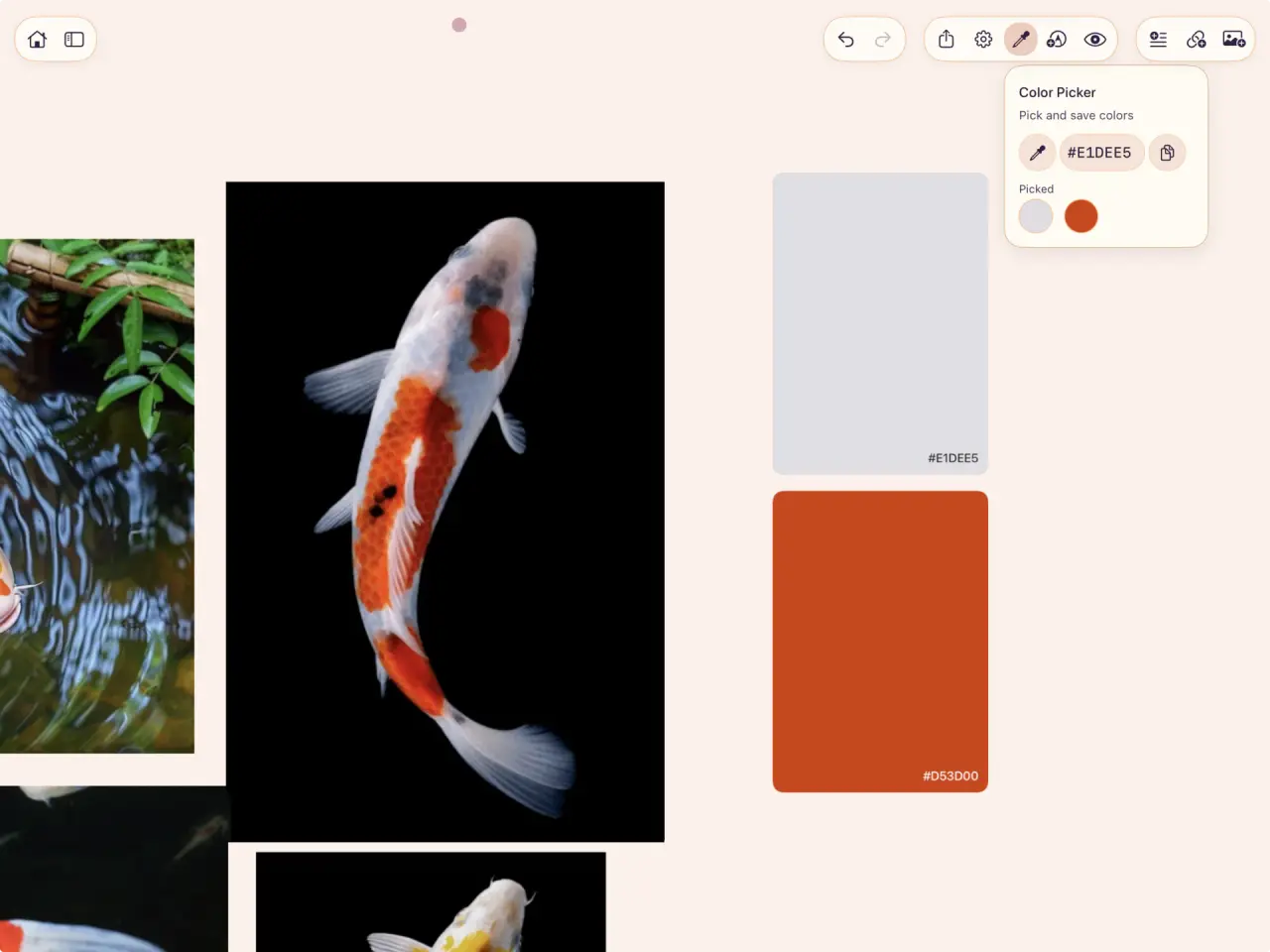
Answer the question before you draw it
ArtDeck includes five study lenses that open over an item without altering the source. Before drawing the koi in the screenshot above, the question was which masses survive once the detail goes, and the Read lens reduced a complicated pattern to four or five patches.
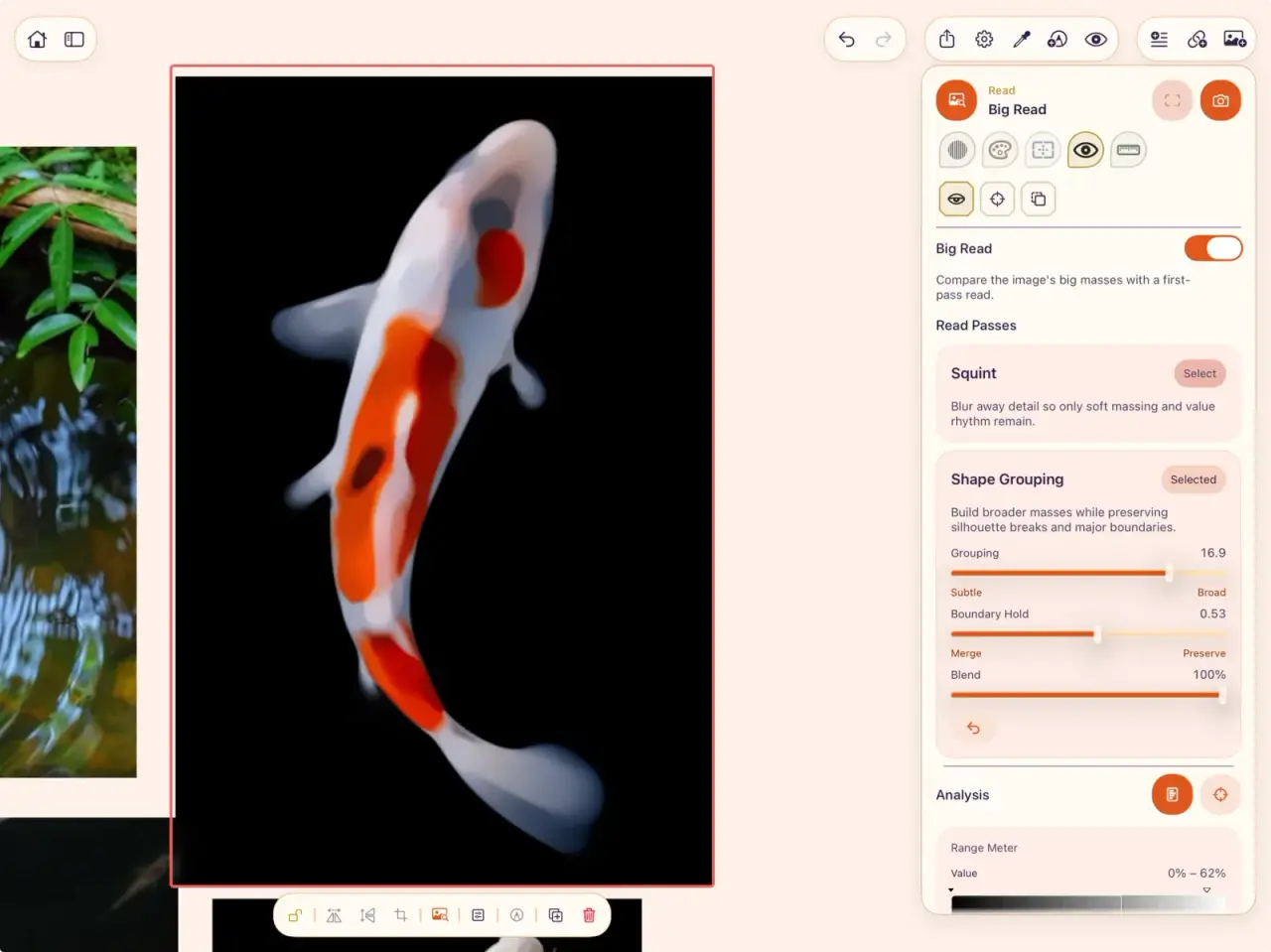
The other lenses take the other questions: Values for light and dark, Color for palettes and temperature zones, Composition for structure and crops, Measure for proportion and angle. You can save results on the same board as the original, which means the answer is still there in an hour when you have forgotten it.
Use both, and know which is which
Which window holds what
Reference Companion inside Procreate
- A live view of your own canvas while you work zoomed in.
- One imported image floating over the artwork.
- Picking a color from that zoomed-out overview of your piece.
- FacePaint on supported iPads.
An ArtDeck board next to the canvas
- Reference images you can arrange and resize separately.
- Source links and your notes belong with the images.
- Built-in study tools when you want to examine a reference.
- The same board has to open on your iPhone or Mac later.
Both can stay open while you draw: the Reference Companion for a canvas overview or one image, and ArtDeck as the reference app for Procreate when the references need arranging and revisiting across projects.
Common questions
Can I use ArtDeck as a plain Procreate reference board?
Yes. Add your images, arrange them, and share the screen with Procreate. The study tools are included, and you choose when to open them.
Can Procreate show more than one reference image at a time?
Its Reference Companion imports one image at a time. A flattened collage can contain several references, and references placed on your canvas also appear in Canvas mode. Use ArtDeck alongside Procreate when you want to arrange and resize the reference images separately.
How do I move a color from ArtDeck into Procreate?
Pick the color off a reference in ArtDeck and its hex value goes to the clipboard. In Procreate, open the Value tab in the color panel and paste it into the hexadecimal field. Going the other way, paste a six-digit hex onto an ArtDeck board and it becomes a labeled swatch that stays with its reference.
Does this work with drawing apps other than Procreate?
Yes. ArtDeck uses iPadOS multitasking to share the screen with other drawing and animation apps. See the app examples and windowing notes for setup details.
Do I have to close Procreate to check a reference?
No. Keep both apps visible in side-by-side windows or use Slide Over where available. Adjust the space for each app to suit your board and drawing.