

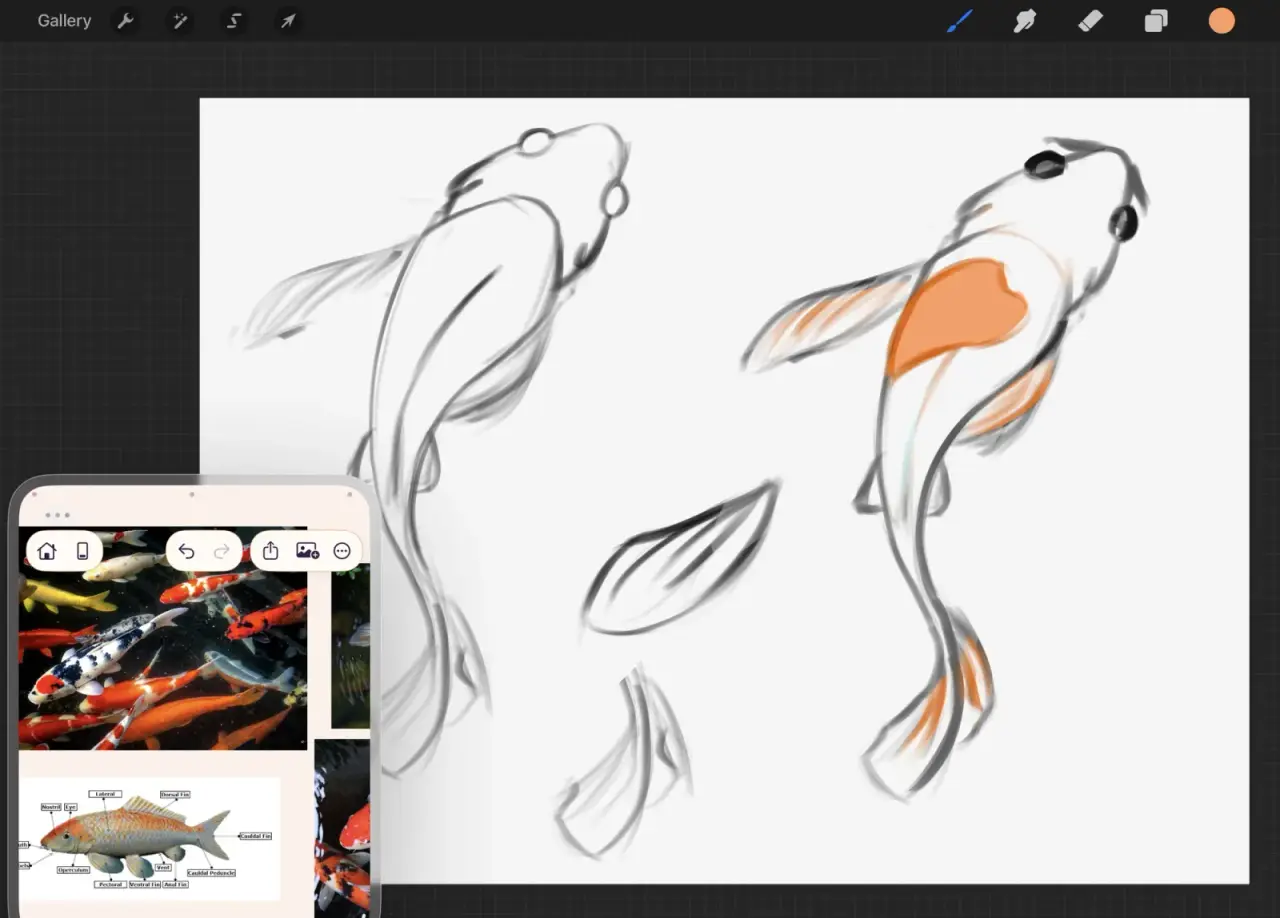
Start with the pictures you want to see while you draw. The koi board above holds photographs and an anatomy diagram, and it can stay that simple or grow a palette, notes, and more references as the piece develops.
Save the source while it is on screen
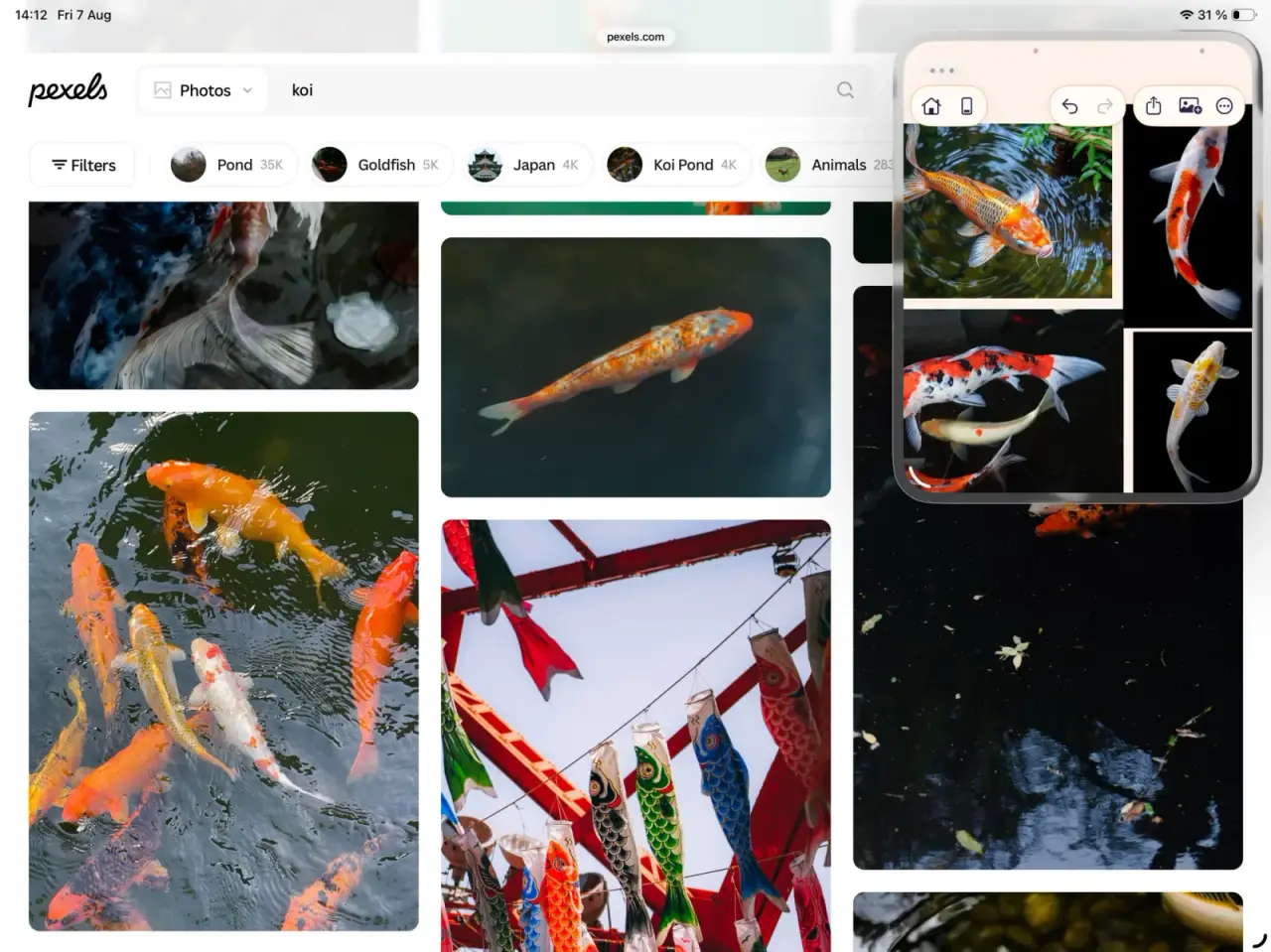
Send an image to ArtDeck from another app’s Share menu, drag it from Safari or Photos, or paste it onto the board. If the source is somewhere else, open Photos, Files, the camera, or the document scanner from ArtDeck.
Keep a URL as a link card when the page matters as much as the picture. Import a direct image, video, or PDF link when you need the material itself on the canvas.
If the board syncs, what you saved on your iPhone or Mac during the week is already on the canvas when you pick up the iPad.
Give each part of the piece its own region
A moodboard on iPad usually stops at the pictures. A reference board also carries the anatomy, the artist references with links back to the gallery or Instagram account they came from, the concepts, the written notes, the colors you settled on, and the studies saved from ArtDeck’s lenses, each in a corner of its own.
The canvas is freeform. Group or nest items when a cluster gets busy enough to need it.
Inspect the reference without changing it
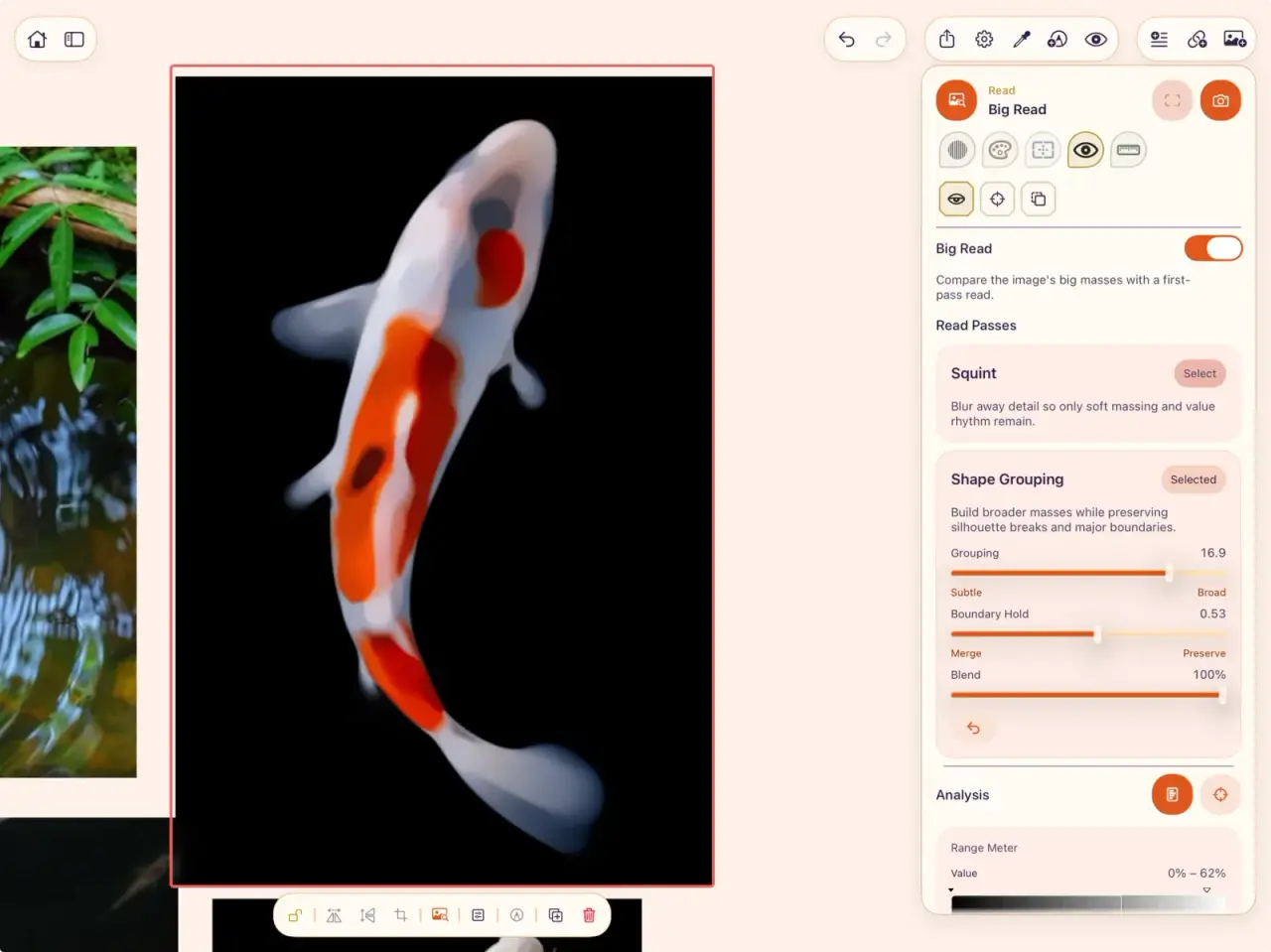
ArtDeck includes five study lenses that open over an item. Before drawing the koi, the question was which masses survive once the detail goes. The Read lens blurs and groups the photograph until only the big shapes remain, and a pattern that looked complicated turns out to be four or five patches.
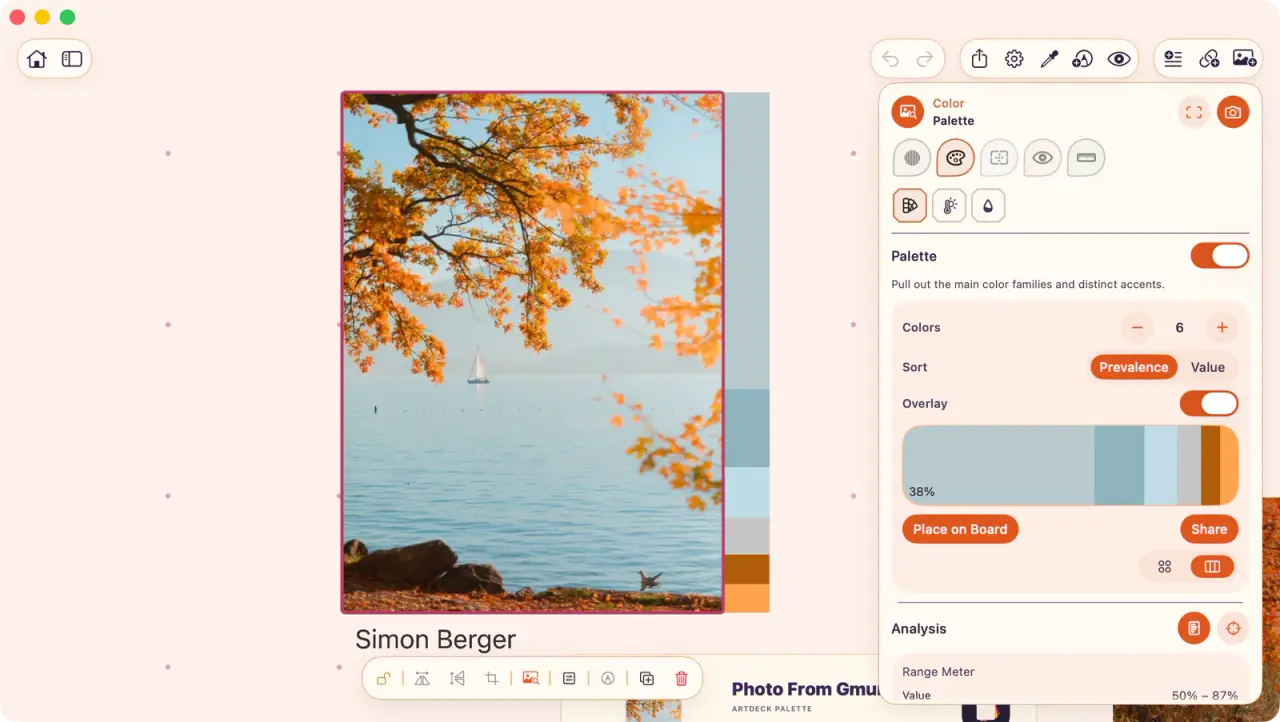
The other lenses handle other questions: Values for light and dark, Color for palettes and zones, Composition for structure, Measure for proportion. None of them alters the source file. Keep the result on the board next to the original, or export it.
An hour later you will have forgotten which of the two photographs had the cleaner value break, and the saved study answers that without redoing the work. Over a few projects the board turns into a record of what you noticed.
You do not need a study plan to use this
You saved a photograph because something about it worked and you could not say what. Open the Values lens and drop it to two tones: either the composition survives as a shape or it does not, and you have your answer in a second. Pull the palette on an image whose color you envy and the surprise is usually the proportions, that the color carrying the picture occupies four percent of it.
If you draw for a living, that is practice. If you draw on weekends, it is curiosity with better tools, and it works the same way.
Keep both apps on screen
On iPadOS 26, enable Windowed Apps in Settings, under Multitasking & Gestures, and open ArtDeck next to your drawing app. Slide Over is available on iPadOS 26.2 and later. On iPadOS 18, use Split View or Slide Over from the multitasking menu. Stage Manager is another option on supported iPads.
Choose side-by-side windows when the board is dense, or Slide Over for two or three references in a floating window you can move aside between checks.
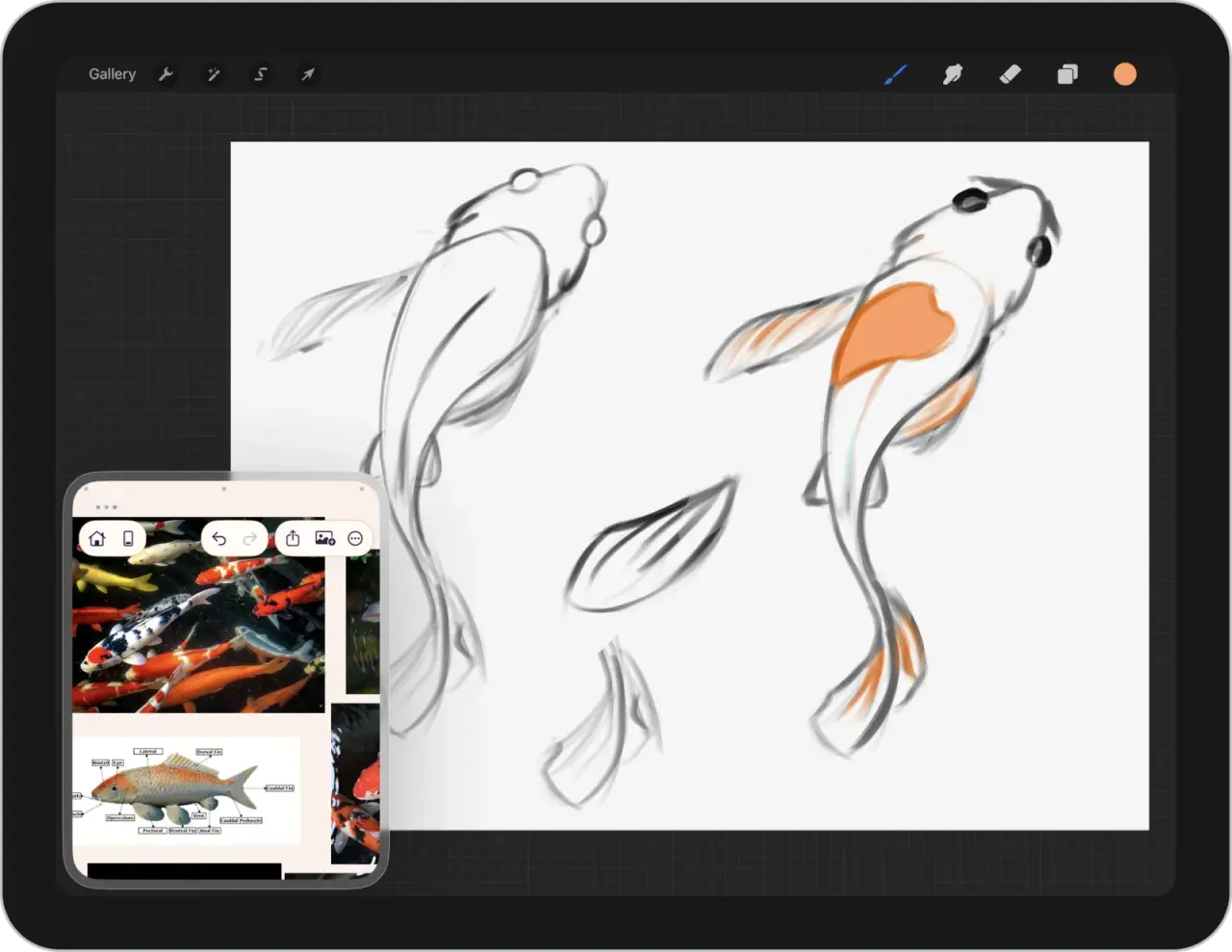
ArtDeck’s eyedropper copies a sampled color as a hex value. In drawing apps with a hexadecimal color field, paste that value to use the color. The Procreate color handoff shows one example.
If Procreate is the drawing app, compare this setup with its one-image Reference Companion, or copy images from ArtDeck onto your Procreate canvas.
Draw or animate with other iPad apps
The window controls come from iPadOS, so any drawing or animation app that supports Split View works next to the board. The notes below come from each app’s documentation, checked September 7, 2026.
Drawing in Clip Studio Paint or Adobe Fresco
For Clip Studio Paint, keep pose photographs, costume details, or color references in ArtDeck next to the canvas. Clip Studio’s official import guide documents working with another app in Split View or a multi-window layout.
If you draw in Adobe Fresco, give its canvas enough width to keep the drawing tools accessible. Adobe’s support answer about references next to Fresco describes the tools disappearing in a narrow split and returning when the Fresco window is widened. That answer dates from 2019, so check the layout with your current Fresco version before settling on a window size.
Animating in Procreate Dreams or ToonSquid
Keep a pose reference or video on the ArtDeck board while you work in Procreate Dreams or ToonSquid. Procreate’s Dreams import guide documents Split View, and ToonSquid’s multitasking update documents Split View, Slide Over, Stage Manager, and iPadOS 26 windows.
In ArtDeck, play a reference clip or step through it frame by frame, and open onion skinning to compare nearby poses; the motion-reference workflow shows how. Sharing the screen moves no files between the apps. Image dragging and color pasting depend on the destination app and the format you send.
Common questions
Does the board need an internet connection?
No. Boards are stored on the device and work offline. iCloud sync carries every board across your iPhone, iPad, and Mac, or leaves the ones you choose where they are, so a board that never leaves the iPad is a fully supported way to use the app.
Is this a moodboard app for iPad?
It can be. A mood board on iPad is pictures arranged for a feeling, and ArtDeck holds that. A reference board adds the anatomy, the palette, the notes, and the studies you take from the pictures, on the same canvas.
Can I use this with apps other than Procreate?
Yes. See the drawing and animation examples for Clip Studio Paint, Adobe Fresco, Procreate Dreams, and ToonSquid. Available layouts depend on your iPadOS version and the space each app needs.
Do the lenses change my original image?
No. Each lens draws over the item without changing the saved source, and a result you want to keep is saved to the board as a separate item.
Is an iPad the best device for this?
It is the one where collecting and drawing happen in the same place, which is why the workflow above is written for it. A dense board is easier to arrange on a Mac, and the same board opens on all three devices if you sync it.
If you are still choosing an iPad app, compare VizRef for images and GIFs and Freeform for a shared canvas. Coming from a desktop board? The PureRef comparison explains the platform limits and how to move your images across.