

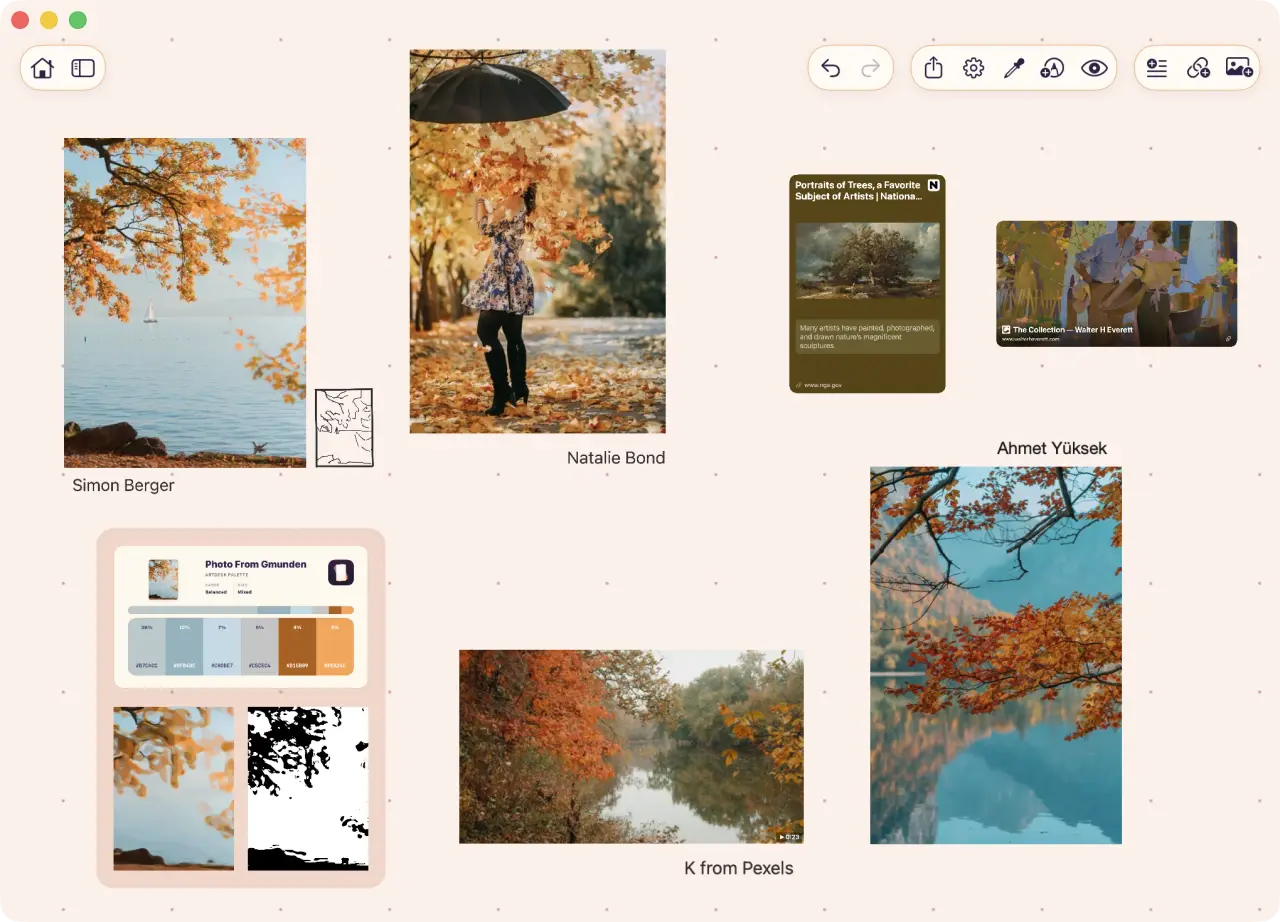
A Pinterest art reference board you’ve added to for years is full of good finds, but it was never meant for one drawing. The grid can’t tell you which Pins explain the light or the construction in the piece you’re working on.
So give the current piece its own, smaller board. In ArtDeck, each image can sit next to the page it came from, with the notes and studies you make later.
Choose Pins by the question they answer
Ask what each Pin answers. Maybe it shows the silhouette of a tree line, or how wet leaves catch the light. If all you know is that an image is beautiful, leave it on the discovery board until a piece gives it a job.
Move a useful Pin while you still remember why you stopped on it. Pinterest downloads images one at a time, so sorting the same Pins into a new section first is just one more pass. On a project that’s already started, decide as you go.
Stop when a new Pin doesn’t answer anything better than what’s already on the working board.
Pinterest sections are handy before the project starts, especially when you’re browsing on your phone. Use one as a queue and empty it later. A name like Leaves piece, October gives the queue an end, while autumn will take new Pins forever.
Open the pin to reach the original source
Open the Pin and follow its destination link when it has one. A Pin can be one photo from a bigger shoot, or one piece from a portfolio. The page behind it may have a better file and the name of the person who made it, and sometimes the image you need is elsewhere in the same series.
The close-up can also carry Pinterest’s AI modified label. Pinterest says it adds the label from IPTC metadata and its own classifiers, and content owners can declare AI use too. A missing label doesn’t mean a person made the image, but when the label is there, it’s worth knowing before you study the anatomy or the materials. Pinterest also lets you ask for fewer AI Pins in some feed categories.
Save the page as an ArtDeck link card if you might need it again. The card shows a preview and the domain, so you’ll recognize the source months later. Keep the image next to the card if you need both while you work.
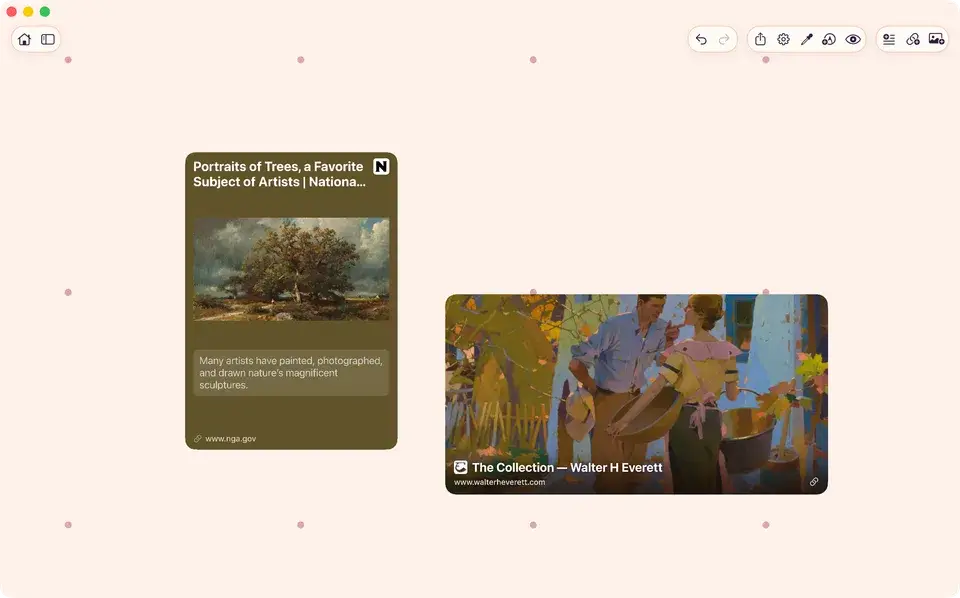
Arrange references by question, not by file type
On iPhone or iPad, send a page or an image to ArtDeck from the Share menu. A Pin you download lands in Photos, and you can also drag from Photos or Safari while both apps are on screen.
On Mac, drag the file onto the canvas and paste its source URL on the same board.
Put each reference where you’ll use it: the anatomy next to the pose it explains, a lighting reference next to the material it lights. Sort every photo into one corner and every link into another, and you’ll just browse the board again. The canvas is freeform, so a busy cluster can become a group and stay next to its question.
A short note keeps the reason you saved something. The fold at the elbow, not the color will help more later than the downloaded filename. You can also rename the image with it in the sidebar.
Study the references you kept
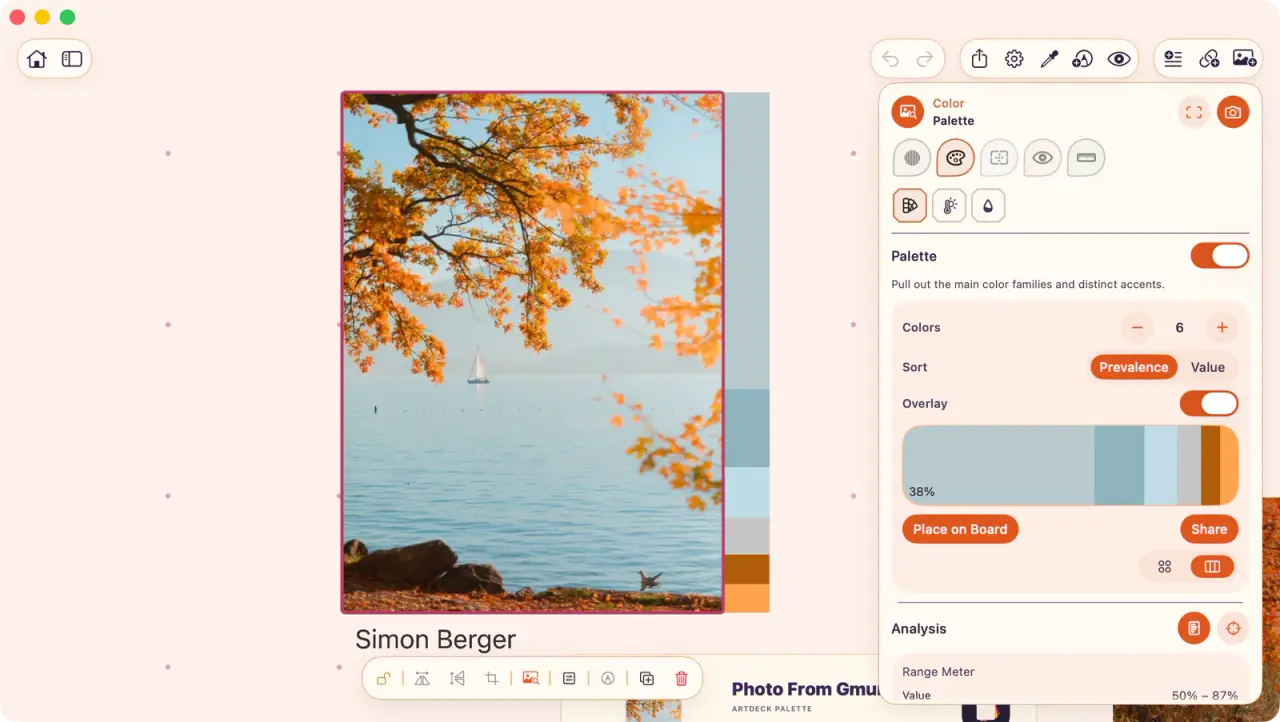
Sometimes you know the color works before you know why. Open ArtDeck’s Color lens and sort the extracted palette by prevalence. In the example below, the orange that seems to define the photograph covers four percent, and a grey-blue covers thirty-eight percent. That can change the palette you paint with.
The other study lenses answer other questions, and none of them changes the file. Values and Read show how the image holds together once the detail is gone. Composition checks the structure, and Measure compares proportions.
Save a useful result next to its source, and the board keeps track of which photo it came from.
The five-question reference routine uses the same approach for deliberate practice.
The board holds a copy of the pin, not a link to it
An image you import into ArtDeck is its own item on the board. It doesn’t sync back to Pinterest, and editing the Pin later doesn’t change it. If the Pin disappears, the image stays where you put it.
A link card is different: it opens the live page, so it needs a connection. Everything else on the board works offline. Keep the board on one device, or let iCloud carry it between iPhone, iPad, and Mac.
When the piece raises a new question, go back to Pinterest. Bring back the best answer you find, with its source, and keep working from the smaller set.
Common questions
Why not just work straight out of Pinterest?
You can. If the project needs only a few images and you find them quickly, Pinterest may be all you need. A separate board helps when opening Pinterest for one reference turns into another round of browsing, or when you want your notes, studies, and images in one place. Pinterest keeps showing you related Pins, and the working board stays as you left it.
How many references should be on the board?
There’s no right number. Start with one reference per open question, and add another when comparing two would help. Stop when new images repeat what the board already answers. A character design usually needs more than a single anatomy check, but neither gets better with padding.
The pin has no link, or the link leads nowhere. What then?
Try a reverse image search. It can lead back to the portfolio or archive the Pin lost, where there may be a larger image or more from the same series. For museum pieces, the open-access museum collections guide goes straight to the museums’ own records. If you still can’t find the source, keep the image if it’s useful and add a note that the source is unknown.
Can ArtDeck import a whole Pinterest board at once?
No. ArtDeck has no Pinterest integration and no way to import a whole board. Send each reference from the Share menu or drag it onto the board, and paste the source URL when you want a link card. Picking Pins one by one also keeps the big archive on Pinterest and only the working set in ArtDeck.
Should I delete the Pinterest boards afterwards?
No. Pinterest says its recommendations use what you save and browse, so your discovery boards stay useful after the project ends. If you don’t want a board to shape your feed anymore, turn off recommendations for it or archive it. Archiving a board turns off its recommendations automatically.